

 |
| How to Install a Custom Blogger Template |
Hai Bloggers Today I will Show You How To Install A Blogger Template Which You Have Been Downloaded From Another Website.
I am Writing This Tutorial Because Design And Optimization Of Blogger Site Is Very Important For Search Engine Optimization.
Traffic And Optimization Of Blogger Depends On Design Of Blogger Template Because When You Want To Earn Money From Your Blog Praticularly ADSENCE, Google Adsence Has Many Regulations Regarding Page Design And SEO,
Hence Finally I want To Give This Short Tutorial FOr Uploading Template On Blogger.
Just as with WordPress themes, you need to be careful about using free Blogger templates found on the web. These can also include malware or spam links to other sites. Unfortunately, unlike WordPress, Google has no official site to distribute Blogger templates separate from their Template Designer, so there is no 100 percent safe source for trustworthy themes.
How to Install a Google Blogger Template:
Here’s how to install a Blogger template you’ve downloaded from another site:
- Log in to Blogger, and on your Blogger Dashboard, click the Design link.
- Click the Edit HTML tab.
- Click the Download Full Template link and save it to your computer.Make a note of the file name and where you saved it in case you need it later!
- Unzip the template file you downloaded from another site.
- Back on the Edit HTML page, click the Choose File button.
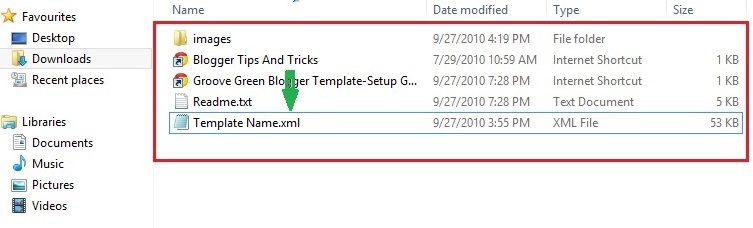
- Navigate to where you saved the unzipped files on your computer, and double-click the one that ends in .xml.
- Click the Upload button.
NOTE: Before doing this, Please backup your previous template because, if you have any problem after uploading the new template, the backup file will help you for restore. Please Read the post about Backup and Restore in Blogger.
How To Install A Blogger Template With Screen Shots:
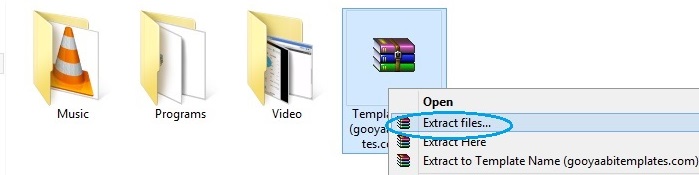
File format that you have downloaded is may be a .ZIP file. so need to be extracted. Please Extract / Unzip it.
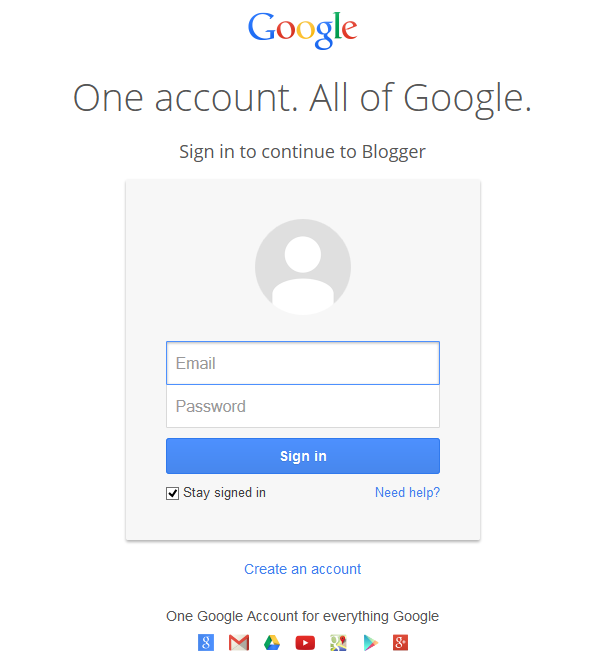
Log in Blogger dashboard
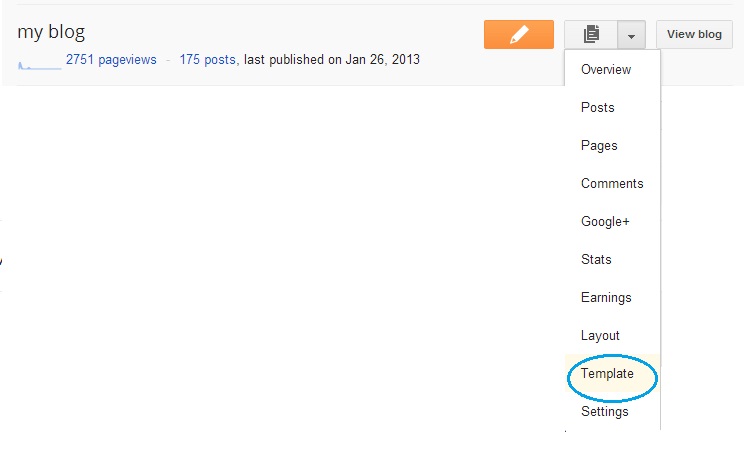
Find your Blog in your Dashboard for you want to change template, and select “Template” in Drop Down menu options.
Look at the top right corner, you will see Backup / Restore button
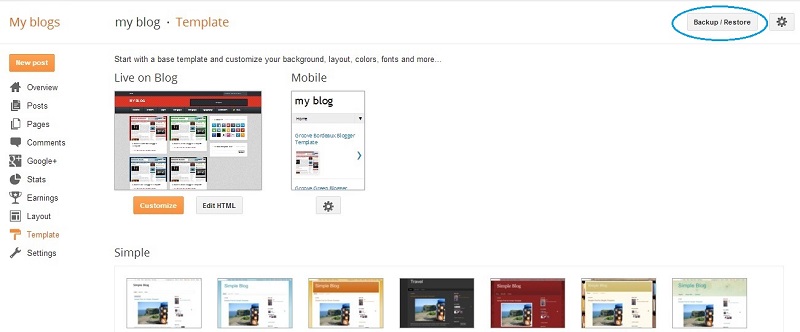
Manage on pop-up windows and click “choose file” button and look for folder that is created after extracted file that you have downloaded.
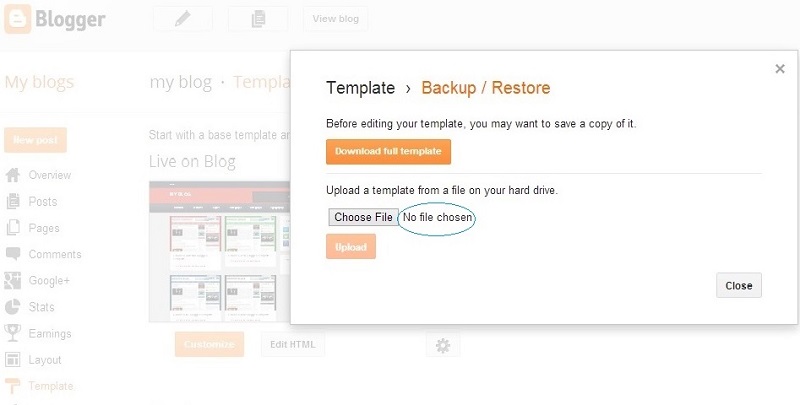
Folder may has a .XML file and .TXT file or Internet shortcuts, you should select only XML file.
Click Upload button. Now upload process may appear in your screen.
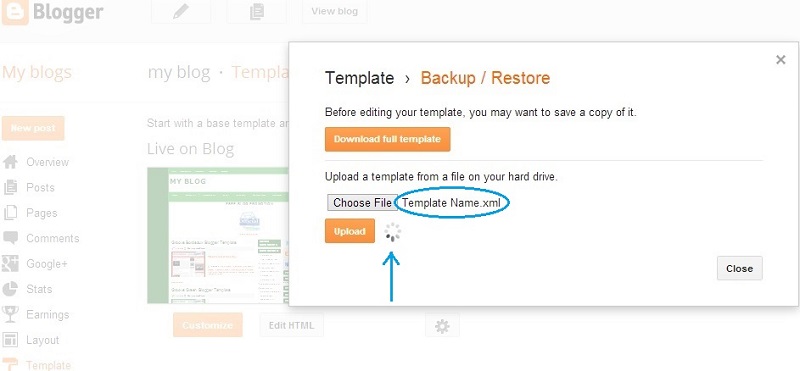
Now the template will be appear in your blog successfully. Enjoy!


0 Comments